
PAC Help
Copyright© by The Library Corporation
The View Reserves button displays
on your PAC toolbar, as shown below, if your library is involved with
an academic institution that places items on reserve for selected courses.
The View Reserves button provides access
to the Departments, Courses, and Instructors associated with the items
placed in a special collection. Through
the View Reserves display, you
can see what courses are offered, what materials are required, the availability
of the materials, and the instructor requesting the reserve.
Let's
look at the dialog displayed after you click View
Reserves on the toolbar, shown below:

The three main components of View Reserves
are Department, Course,
and Instructor. Use
the drop-down list to select a particular one for each Department, Course,
or Instructor, or use Any to show
all of the individual components. Click
Show Reserves. The
reserved items display with the corresponding Title,
Department, Course,
Instructor, and Status
of the item. See
the example below:
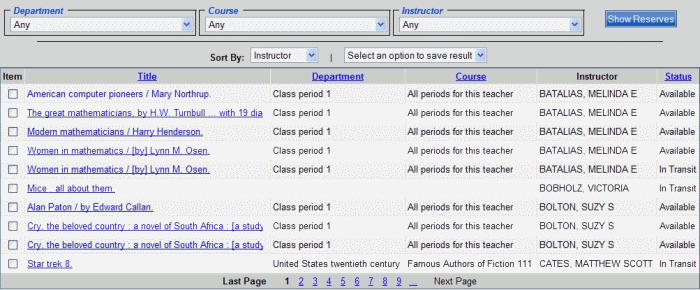
Once you have a certain Department, Course, or Instructor result set displayed, there are several ways to view the information:
Use the Sort By to arrange the results by Title, Department, Course, Instructor, or Status. Each sort returns the items in alphabetical order.
Use the Select an option to save result drop-down list to save selected, or all checked items to a list. These items will be added to a review list. See Review List for more information and options to print your list.
Click the column heading for Title, Department, Course, Instructor, or Status to sort the individual column alphabetically.
Use the navigation at the bottom of the screen to move forward or backward in the result set either page by page, or by using Last Page or Next Page.