PAC Help
Copyright© by The Library Corporation
Do you want to change your PIN? Click
My Account on the PAC toolbar.
If you
have not already logged on, you will be asked for your Patron ID Number
and PIN. The
Account Summary dialog opens.
From the
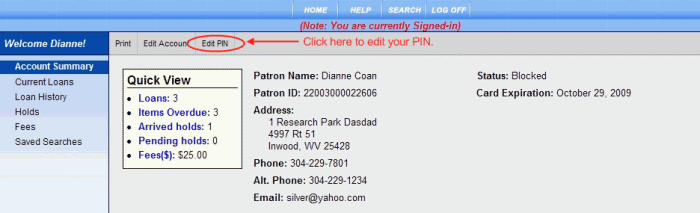
Account Summary toolbar, click
Edit PIN. See
the example below:
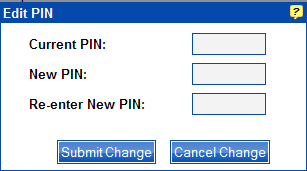
The dialog displays, as shown below:
To Edit PIN
Type your current PIN in the entry box to the right of Current PIN.
Type
your new PIN in the entry box to the right of New
PIN.
Note: Your
PIN can be numbers, upper or lower case letters, or a combination with
a maximum of 8 characters.
Type the same information you entered in Step 2 in the entry box to the right of Re-enter New PIN.
Click Submit Change. A confirmation box displays briefly, "Your PIN was changed successfully." Your PIN has been changed and you are returned to the Account Summary screen.
If
you decide not to change your PIN, click Cancel
Change. Your
PIN will remain as it was previously.
Note: You
must select Submit Change or Cancel Change to return to the Account Summary screen.
See Edit Account, Change Email Address, or Change Address for additional information on changing your account information.