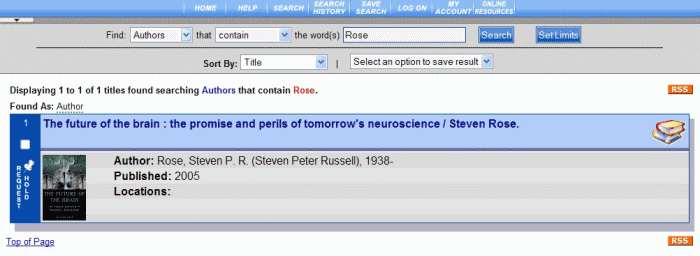
From the PAC toolbar, click Search.
Search displays several options. Click the New Items tab.
The
New Items dialog opens, as shown
below:
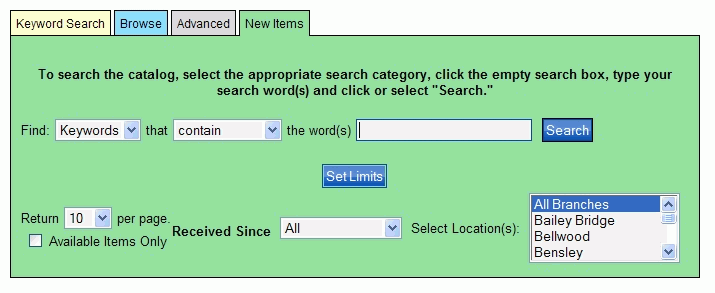
To the right of Find, use the drop-down list to select specifically what you are looking for, or select Keywords if you want to see everything with the keyword you will type in the entry box.
To the right of that, use the drop-down list to narrow your search. Select contain if you want to see everything.
Enter a keyword or words in the entry box to the right of word(s). This keyword may be part of the title, author's last name, what the subject matter is, or whatever may help you find the item.
Use the Received Since drop-down list to view items received within a certain time frame. Do you want to view those items received just this month? Select This Month from the drop-down list.
Select the specific location to view the new items from the Select Location(s) drop-down list. You can see what is new specifically to your branch.
OPTIONAL: Use the Set Limits option if you want to be more specific in your search. With Set Limits, you can select the Collection (Non-Fiction, Young Adult, etc.), Format (book, sound (music), map, etc.), Language, or Place, along with a selected location such as your Library name or any of its branches.
OPTIONAL: The Return ## per page default setting is 10. Use the drop-down list to increase the number of results you want to display per page. You can return as many as 100 results at a time.
OPTIONAL: If you would like your search results to contain only those new items that are currently available in your Library, select the check box to the left of Available Items Only.
Once you have set up the above steps with the information you want, click Search. The search results display based on the entered criteria. See Understand Search Results, Understand Individual Search Result, or Understand Label Displays for more information.
If you did not obtain the results you expected, reset your search criteria. Try a different keyword or search type.